
How to get authorized to run political ads on Facebook
Under Facebook's current regulations, all US-based political campaigns must complete an authorization process prior to buying ads on the platform (this includes paying to "boost" regular posts). In order to buy Facebook ads, at least one administrator on your campaign's Facebook page must complete the authorization process.
To start the process, visit Facebook's identity authorization page. Once there you will be prompted to follow a number of steps for verifying your identity.
You'll need:
A high resolution (at least 1,500 pixels by 1,000 pixels) scan of your US driver’s license or US passport.
A US-based residential mailing address.
The last 4 digits of your Social Security number.
Your cell phone (for verification purposes).
Currently, you can only set up and manage ad authorizations from a desktop computer.
1. Go to Facebook’s identity authorization page
To get started, go to Facebook's identity authorization page and follow the prompts:
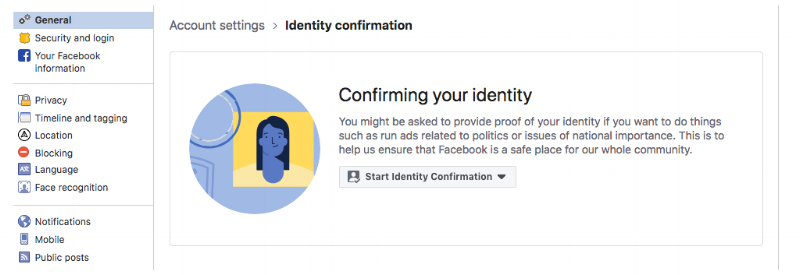
Alternatively, go to your campaign's Facebook page and click the Settings link on the top. Under Settings, click on the Authorizations link on the left side menu (about half way down on the page).
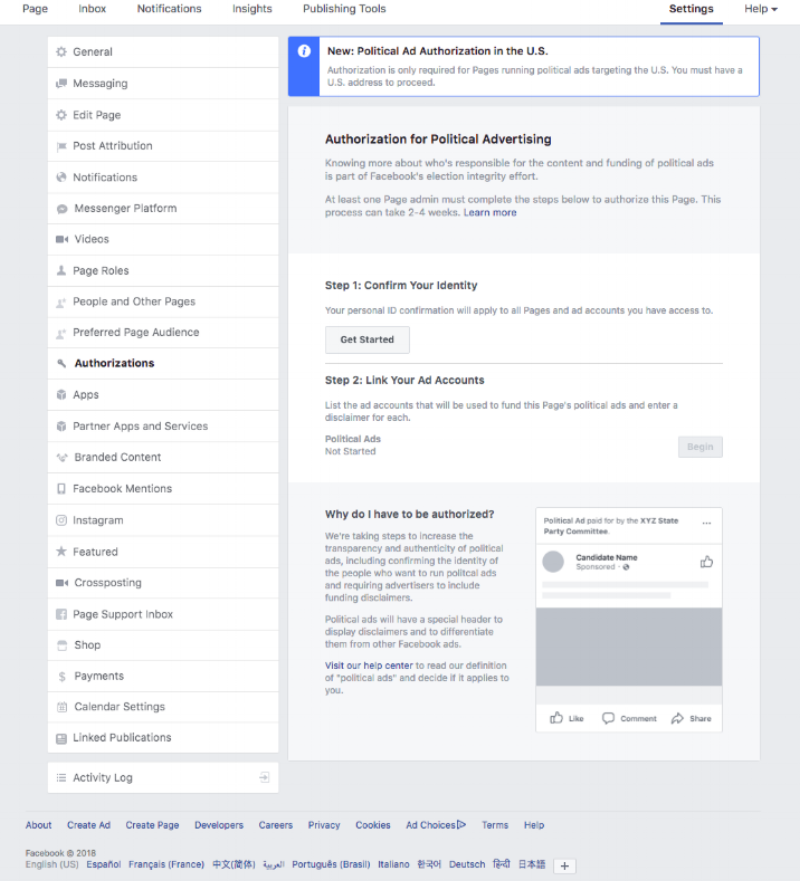
2. Set up two-factor authentication
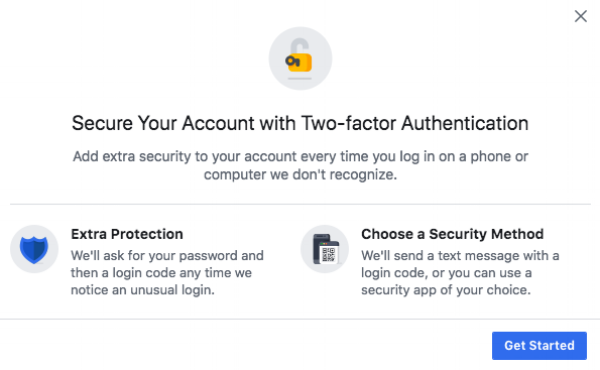
You'll need to turn on two-factor authentication — an extra layer of login protection to prevent hacking — as part of the authorization application process. To do so, follow the prompts on the identity authorization page and follow the prompts:
3. Confirm your identity (request verification code)
In order to confirm your identity, Facebook will need to generate a verification code to send you through the mail. Here are the steps to request a verification code:
Provide your physical mailing address. This is where Facebook will send your verification code, so be sure to use the address where you currently receive mail.
Provide a high resolution scan of your valid government-issued ID. This should be a driver’s license or passport, and you will need to upload a clear copy of both the front and the back. Note: the address on your photo ID does NOT have to match the address where you currently receive mail.
Provide the last four digits of your Social Security number.
The verification code should arrive at your address via mail within 10 days. You can check it's status by returning to the Authorizations screen and clicking the View button next to your name. If your code doesn't arrive within 10 days, you can request a new one here: https://www.facebook.com/id.
After you've received your code in the mail, follow these steps:
Return to the Authorizations page
In the Confirm Your Identity section, enter your unique code.
Click Submit Code.
After entering your code, your ID confirmation should be complete.
4. Link your ad accounts
Once you've completed the authorization process, you'll need to link the ad accounts that will be used to fund your Page's political ads to your Page and enter a disclaimer for each.

Here are the steps:
Accept Terms
Click Next to agree to comply with Facebook’s Terms and Conditions.
Link Ad Accounts
In this section, Facebook will show you a list of all the ad accounts you can access. Check the box on the ad account(s) that will need disclaimers.
Edit Disclaimers.
For the ad account selected, add a relevant disclaimer to appear with your ad. Most likely, this will be "Paid for by [name of campaign]."
Review & Submit
After clicking “submit," you will need to wait until the disclaimer has been approved. This process can take up to 24 hours and you will not be able to purchase new ads until completed.
